A page, not just one screen
The extension scrolls the page and joins the captures into one image. No need to take and stitch together separate screenshots by hand.
An extension for the Chrome browser
Save an article, product page or landing page as one long image. The extension scrolls the page for you, then lets you preview, copy or download the PNG.
Free · No account · Processed in your browser
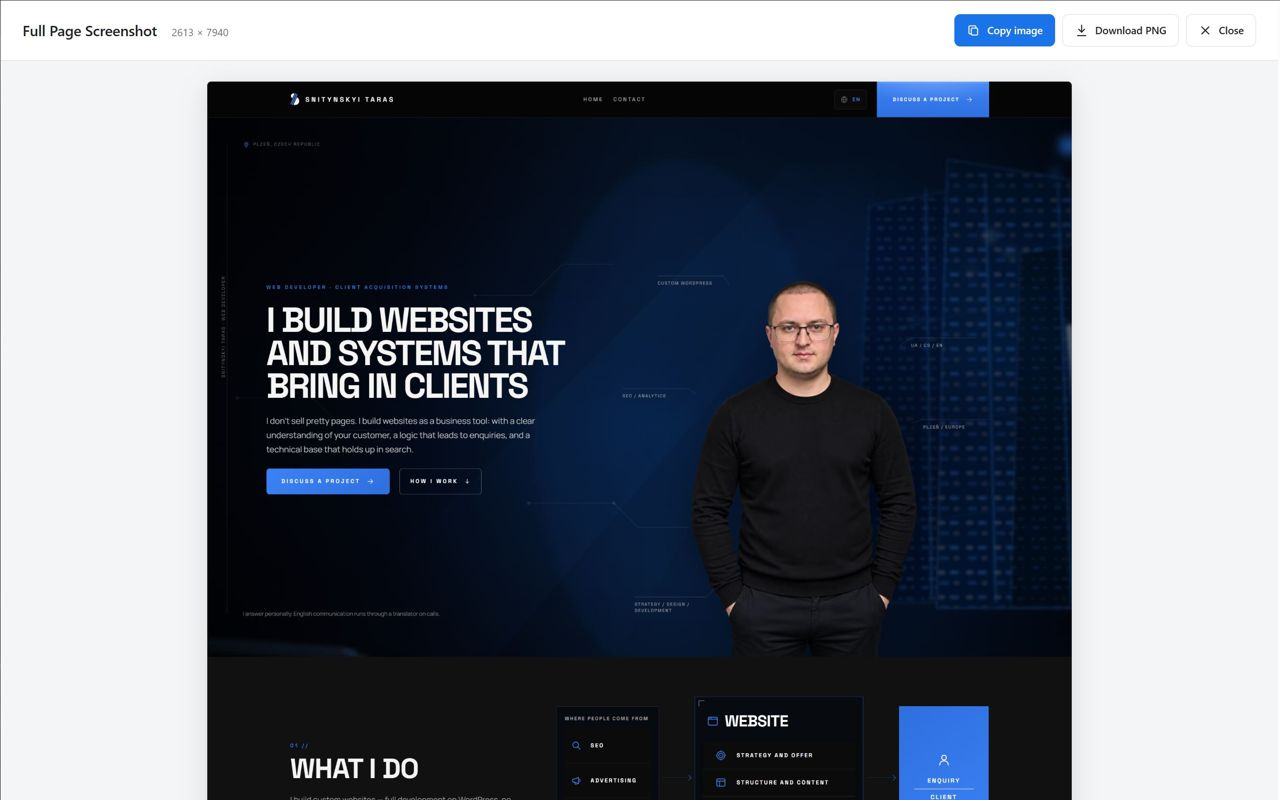
The extension scrolls the page and joins the captures into one image. No need to take and stitch together separate screenshots by hand.
Your screenshot opens in a separate window. Check what was captured before saving it or sharing it with someone else.
Copy the screenshot to your clipboard to paste into a chat or document. Or download a PNG file to keep on your computer.
For the moments when a link or a single screen is not enough.
Send a client a screenshot of the page you are discussing. All captured sections are in one file, making it easier to explain what needs to change.
Keep a useful landing page, article layout or product page as a visual reference for your own project.
Save the page before an update so you can compare the before and after. Or capture an offer while it is still on the website.
First, install the extension from the Chrome Web Store. After that, start by opening the webpage you want to capture.
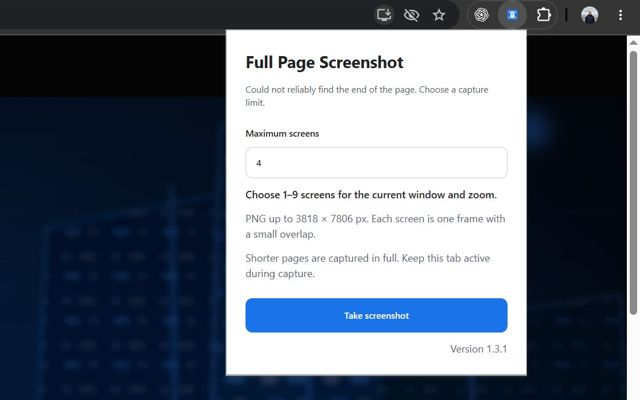
Open the webpage, click the Full Page Screenshot icon and wait for the page check. Review the screen limit and available background settings. Capture has not started yet.
Click “Take screenshot” and keep the source tab active. The extension scrolls the page and captures it within your selected limit. Keep the window size and zoom unchanged until it finishes.
Check the result. Choose “Copy image” to paste the screenshot into a chat or document, or “Download PNG” to save a file on your computer.
While capture is running, stay on the source tab and keep the window size and page zoom unchanged.
New features, fixes and the status of each extension version.
Review your settings first, then start the capture. This update also improves how page backgrounds and fixed elements are handled.
The page image and title are processed locally in your browser. The extension does not upload screenshots, include analytics or ask you to create an account. You choose when to copy or download.
About privacy in the extensionEnglish, Ukrainian, Czech, German, Spanish, French, Polish, Norwegian Bokmål, Italian and Simplified Chinese.
The interface follows Chrome’s language setting. English is used when a translation is not available.
A few clear answers about what the extension can and cannot do.
Yes, the extension is available for free in the Chrome Web Store. No registration is needed to capture, copy or download PNG screenshots.
The current version creates PNG images. It does not include PDF export, cropping, arrows or text annotations. Open the downloaded image in your preferred editor if needed.
It is designed for ordinary webpages. Chrome does not allow capture of its internal and protected pages or the Chrome Web Store. Animations, complex layouts and content that changes during scrolling may affect the result.
A social media feed, for example, may keep adding posts as you scroll. For a feed or an overly long page, choose how many screens to capture from the top. This saves a limited section, not the entire endless feed. The available maximum depends on window size and zoom. The result includes a notice if only part of the page was saved.
It first opens as a preview in your browser. “Copy image” adds it to your clipboard; “Download PNG” saves a file according to Chrome’s download settings. The extension does not upload screenshots to a server.
The extension captures the page Chrome displays and scrolls it in sequence. Switching tabs, resizing the window or changing zoom can interrupt capture or change the result.
Another question? Visit support
The button opens Full Page Screenshot in the Chrome Web Store. Confirm installation, return to the webpage you need and click the extension icon.